 CSS Clone Detection
Overview
Microsoft allows organisations to customise the appearance of their Entra ID login pages through company branding, including the ability to upload custom CSS. When an adversary performs an Adversary-in-the-Middle (AiTM) attack, their phishing toolkit clones the target login page to make it appear identical to what the user normally sees. This includes any custom CSS applied to the page.
By embedding a small, invisible CSS rule in your login page styling, we can detect when your login page has been cloned. When a phishing kit serves its copy of your login page to a victim, the embedded CSS triggers a request back to our infrastructure. The referrer on that request reveals the phishing domain, giving us early visibility of attacks targeting your organisation.
The CSS we provide is unique to your organisation and does not affect the appearance of your login page in any way.
No availability risk
This integration carries no risk to your users' ability to log in. The CSS rule loads a zero-size invisible resource in the background. If our service is unavailable for any reason, the resource simply doesn't load and the login page continues to function exactly as normal. No credentials, tokens, or any other sensitive information are ever sent to or processed by our infrastructure. The only data we receive is the HTTP referrer header, which tells us which domain served the page.
Entra ID tenant requirement
Microsoft removed the custom CSS capability for tenants created after January 5, 2026. If your Entra ID tenant was created before this date, you can use this feature. Tenants created after this date cannot upload custom CSS through company branding. Microsoft Entra External ID tenants are not affected by this restriction.
Prerequisites
- A Microsoft Entra ID P1 or P2 licence
- An Entra ID tenant created before January 5, 2026
- The Organizational Branding Administrator role (at minimum) in your tenant
- Your custom CSS snippet from the Lab539 Portal
Setup
1. Get your CSS snippet
Log in to the Lab539 Portal and navigate to the Login Protection section. You'll find a CSS snippet that is unique to your organisation. Copy this snippet - you'll need it in a moment.
2. Retrieve your existing custom CSS (if any)
Do not skip this step
Uploading a new CSS file to Entra replaces any existing custom CSS entirely. If you already use custom CSS for your Microsoft login pages, you must merge our snippet into your existing file before uploading. Uploading our snippet on its own will remove your current styling.
If you don't currently use custom CSS in your company branding, skip ahead to step 3.
If you do (or you're not sure), retrieve your current CSS using one of these methods:
Connect to Microsoft Graph and download your existing CSS file:
Connect-MgGraph -Scopes "OrganizationalBranding.Read.All"
$orgId = (Get-MgOrganization).Id
Get-MgOrganizationBrandingLocalizationCustomCss `
    -OrganizationId $orgId `
    -OrganizationalBrandingLocalizationId "default" `
    -OutFile "existing-branding.css"
If this returns an empty file or an error, you don't have existing custom CSS and can proceed to step 3.
Make a GET request to retrieve the current CSS:
You'll need the OrganizationalBranding.Read.All permission. If the response is empty or returns a 404, you don't have existing custom CSS.
- Open your organisation's Microsoft login page in a browser
- Open developer tools (F12)
- In the Sources or Network tab, look for a CSS file loaded from
aadcdn.msftauthimages.netor a similar Microsoft CDN domain - If you find a custom stylesheet, copy its contents
This approach is less reliable than the Graph API methods but works if you don't have Graph access.
3. Prepare your CSS file
If you have existing custom CSS: Open your existing CSS file in a text editor and add the Lab539 snippet to the end of the file. Save the combined file.
If you don't have existing custom CSS: Create a new .css file containing only the Lab539 snippet from the portal.
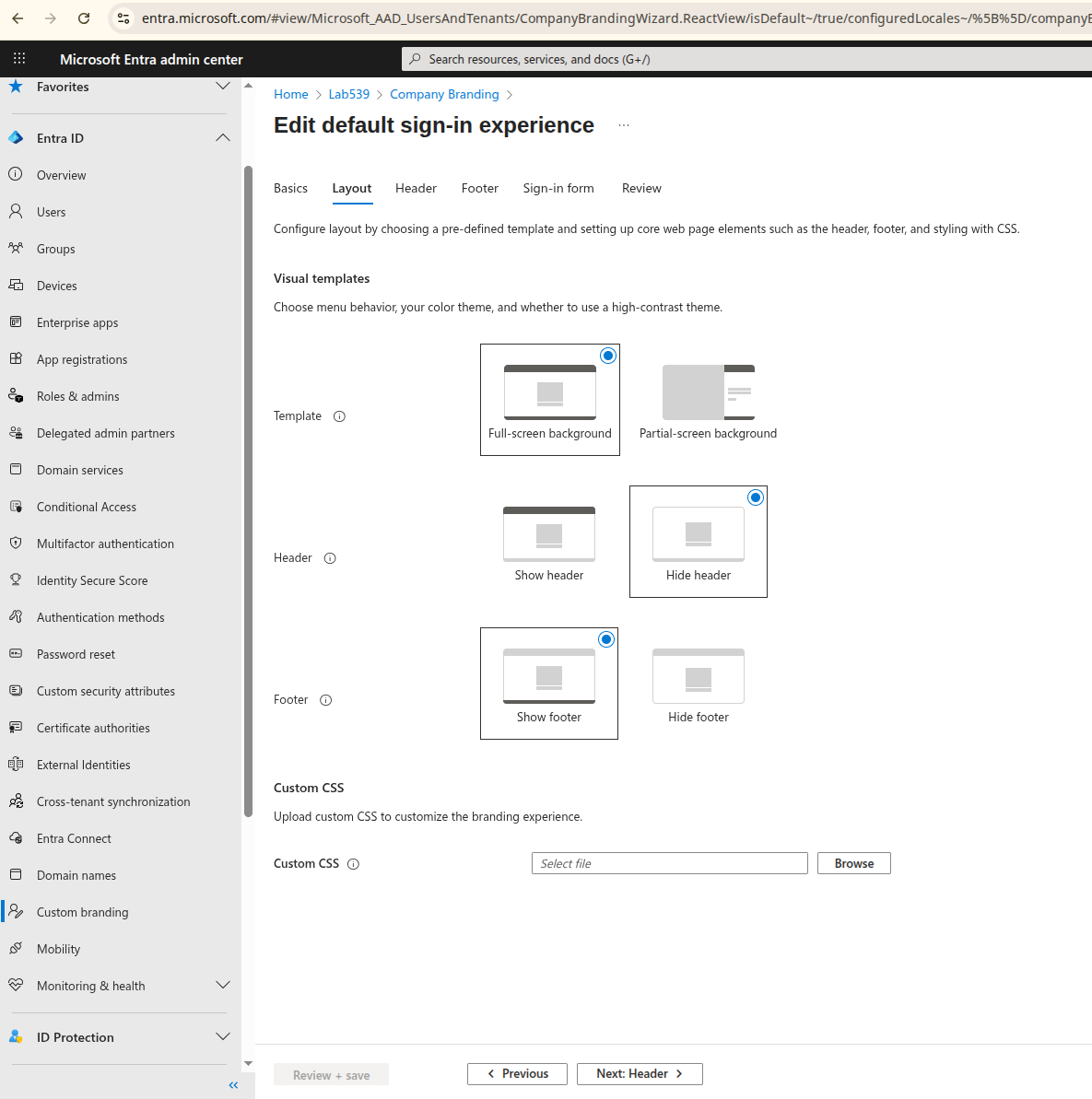
4. Upload to Entra
- Navigate to the Microsoft Entra admin center
- Go to Entra ID > Custom Branding
- Click Edit (or Configure if this is your first time setting up company branding)
- Select the Layout tab
- Scroll down to Custom CSS
- Click Browse and select your prepared CSS file
- Click Review + save
Verify your branding
After uploading, open a private/incognito browser window and navigate to your organisation's Microsoft login page. Confirm that your existing branding still looks correct. The Lab539 CSS is invisible and will not change the appearance of your login page.
How detection works
Once configured, the CSS rule sits silently in your login page styling. It has no visible effect - no layout changes, no visual indicators. When a phishing toolkit clones your login page to serve it from a malicious domain, the CSS rule is copied along with everything else. When a victim visits the phishing page, the embedded rule makes a request to our infrastructure. The referrer header on that request tells us which domain is hosting the cloned page, allowing us to identify the phishing infrastructure targeting your organisation.
This approach works because phishing toolkits scrape and replicate everything on the login page to maintain the illusion of legitimacy. The very behaviour that makes phishing convincing is what exposes it.
Troubleshooting
I uploaded the CSS but my existing login page styling has changed
You likely uploaded the Lab539 snippet without merging it into your existing CSS. See step 2 above to retrieve your original CSS from Microsoft Graph, then combine both files and re-upload.
The Entra portal doesn't show a Custom CSS option
The custom CSS option is only available for tenants created before January 5, 2026. If your tenant was created after this date, this feature is unfortunately not available. Contact us and we can discuss alternative approaches.
I've updated my company branding and the CSS has disappeared
Any time you edit your company branding in Entra and upload a new CSS file, the previous file is replaced. If you make branding changes, make sure your CSS file still includes the Lab539 snippet before uploading. We recommend keeping a copy of your combined CSS file somewhere accessible to your team.
How do I know if detection is working?
Contact us after setup and we can run a verification test to confirm that the CSS is correctly embedded and that our infrastructure is receiving the expected callback.
Does this work for multiple applications?
Yes. The company branding CSS applies to all sign-in experiences that use your Entra ID default branding. If you use branding themes for specific applications, you'll need to include the CSS in each theme's custom CSS as well.